Folder compare · 6 min read
How to Compare Two Folders Online Without Installing Anything
Compare two folders in your browser and list added, removed and changed files. What it checks, what it skips, and why a copy shows every file as modified.
Last updated
On this page
To compare two folders online, open the Folder Compare tool, choose the first folder on the left, the second on the right, and click Differences. You get a list of files that are only in the left folder, only in the right one, or modified, and you can open any file to see the changed lines side by side. Nothing is installed or uploaded: your browser reads the files and does the comparison. The one thing to know is how "modified" is decided. It means the size or the last-modified time differs, so a copied folder can show every file as modified. Below is a real comparison, what it skips, and how to tell a real change from a timestamp.
Compare two folders in four steps
- Open Folder Compare on a desktop browser.
- Click the left box and choose the first folder, or drag the folder onto it. Your browser may ask you to allow the site to view the files.
- Do the same for the second folder on the right.
- Click the Differences button above the files. Click any entry to open that file on both sides.
Pick the folders themselves, not a parent folder. The tool strips the top folder name, so site-v1/index.html and site-v2/index.html are both matched as index.html. We ran these steps in Chrome and Firefox with the same results.
A real comparison
We made two versions of a small website. In the second one, we changed the opening time in index.html from 7am to 6am, raised the version in package.json, deleted about.html, added contact.html, and edited a file under node_modules. Everything else stayed the same.
The Differences list showed four entries:
| File | Status |
|---|---|
about.html |
Only in left |
index.html |
Modified |
package.json |
Modified |
contact.html |
Only in right |
Opening index.html showed the two versions side by side, with line 6 highlighted and the change from 7am to 6am marked. The ↑ and ↓ buttons next to Differences jump between changed lines in the open file. The edit inside node_modules didn't appear, which is on purpose: that folder is skipped.
What the comparison checks
- Files are matched by path.
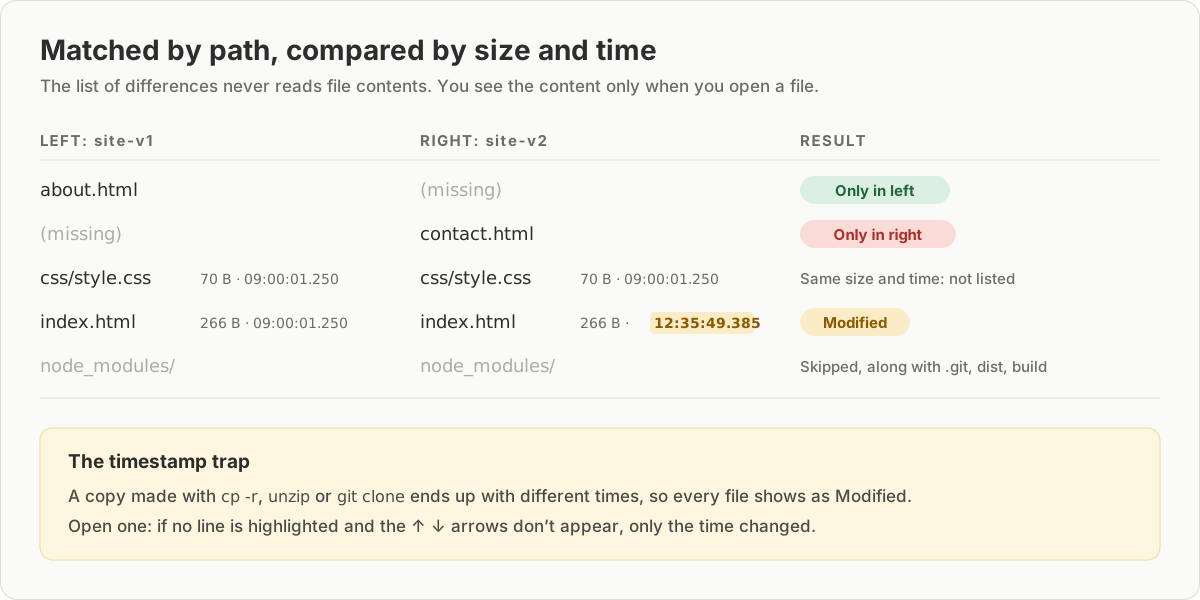
css/style.csson the left is compared withcss/style.csson the right. A file that was renamed or moved shows up twice, once as only in left and once as only in right. - Modified means a different size or last-modified time. The list doesn't read file contents, which is why it is fast. Two folders of 5,000 small JSON files each loaded in under a second per side in our test, and the list found the one changed file and the one deleted file.
- Some folders are skipped.
node_modules,.git,.github,.vscode,.idea,dist,build,.next,.nuxt,coverage,venv,.venv,__pycache__,.pytest_cache,targetandvendorare left out at any depth, and so are.exefiles. These are dependencies and build output that make a project comparison noisy. If you need to compare adistfolder, choose it directly instead of its parent. - Folders aren't listed as differences. A folder that exists on only one side doesn't appear, but the files inside it do.
The "files loaded" message counts folders too. Our 5,000 files in 50 subfolders showed "5050 files loaded".
Why every file shows as modified
This is the most common surprise. We copied the first folder four different ways and compared each copy with the original. The content was identical in all four:
| How the copy was made | Shown as modified |
|---|---|
cp -r |
6 of 6 files |
zip, then unzip |
6 of 6 files |
git clone |
6 of 6 files |
cp -a |
0 |
cp -r and git clone give every file the time of the copy. Zip only stores whole seconds, so our files, saved at 09:00:01.250, came back as 09:00:01.000. That is a difference of a quarter of a second, but it is a difference. cp -a, rsync -a and most backup tools keep the original times, and those copies showed no differences.
To check a file marked Modified, open it. If no line is highlighted and the ↑ ↓ buttons don't appear, only the time changed. If you need to check a whole copy or backup by content, run this on Linux or macOS:
diff -rq site-v1 copy-of-site-v1It compares the bytes of every file and printed nothing for the cp and zip copies, because their content was the same. For the clone, it printed only Only in copy-of-site-v1: .git, which --exclude=.git removes. On our two website versions, it listed the same four files as the tool, plus the file in node_modules, which diff doesn't skip. Add --exclude=node_modules to leave it out.
Is it safe for private files?
The page reads your files with the browser's file API, and the comparison and the side-by-side view run in the page. We recorded every network request while picking both folders, opening the Differences list and opening files: there were none. The folder contents stay on your computer, and closing the tab clears them.
When this fails
| Symptom | Cause | Fix |
|---|---|---|
| Every file is Modified | The copy has different timestamps | Open a file to check, or use diff -rq |
| Nothing at all matches | A parent folder was chosen on one side, so paths start with an extra folder name | Choose the two folders at the same level |
| A file appears as only in left and only in right | It was renamed or moved | Open both by name and compare them in File Compare |
| A change you expected is missing | It is inside node_modules, .git, dist, build or another skipped folder |
Choose that folder directly |
| The editor says "File not found on this side" | A folder is selected, not a file, or the file is missing on that side | Click a file in the tabs or the Differences list |
Try it in JSON Workbench
Open Folder Compare, choose two folders, and click Differences. To compare just two files, use File Compare. For two JSON files, JSON Compare shows the changed values side by side.
FAQ
Can I compare two folders online without uploading them?
Yes. The Folder Compare tool reads the files with your browser's file API, and the comparison runs on your computer. In our test, the page made no network requests after it loaded, while we picked two folders, listed the differences and opened files.
Why does every file show as modified?
The list compares size and last-modified time, not content. A copy made with cp -r, extracted from a zip or checked out with git clone gets different times, so every file is marked Modified even when nothing changed. Open a file: if no line is highlighted, only the time differs. Copy with cp -a or rsync -a to keep the times.
Does it compare subfolders?
Yes. Both folders are read recursively, and files are matched by their path inside the folder, such as css/style.css. Empty folders aren't listed as differences.
Which files are ignored?
Folders named node_modules, .git, .github, .vscode, .idea, dist, build, .next, .nuxt, coverage, venv, .venv, pycache, .pytest_cache, target and vendor are skipped at any depth, along with .exe files. A change inside node_modules won't show up.
How do I check that two folders have exactly the same content?
On Linux or macOS, diff -rq folder1 folder2 compares the bytes of every file and prints nothing when they match. It ignores timestamps, so it is the right check for a copy or a backup. Note that it doesn't skip node_modules or .git unless you add --exclude.
Try it yourself
Open Folder Compare
Free, no sign-up. Your file is read and parsed in your browser.
Open Folder Compare