Folder compare · 6 min read
Find Out Which Files Changed Between Two Folder Copies
List the files that were changed, added, deleted or renamed between two copies of a folder, by content, not timestamp. Tested with git, rsync and Python.
Last updated
On this page
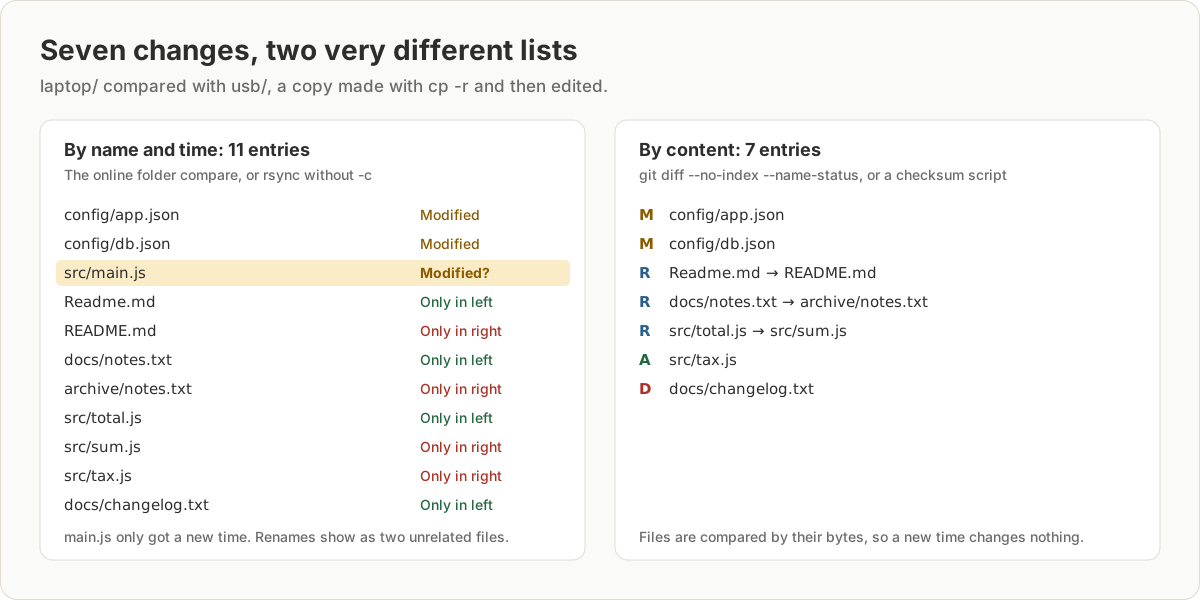
To find out which files changed between two copies of a folder, compare them by content, not by date. The quickest way is git diff --no-index --name-status old-folder new-folder. It works on any two folders, even ones that aren't git repositories, and prints one line per change: M for modified, A for added, D for deleted and R for a file that was renamed or moved. Tools that compare names and timestamps give a longer and less useful list: a renamed file shows up twice, and an untouched file that was copied looks modified. Below is one pair of real folder copies, checked with git, diff, rsync and a short Python script that also works when the two copies are on different computers.
Our two copies
We copied a small project from a laptop to a USB stick with cp -r and then made seven changes to the copy on the stick:
- Edited
config/db.json:"pool": 10became"pool": 20. - Saved
config/app.jsonwith Windows line endings (CRLF). Nothing else changed in it. - Renamed
src/total.jstosrc/sum.js, andReadme.mdtoREADME.md. - Moved
docs/notes.txttoarchive/notes.txt. - Added
src/tax.jsand deleteddocs/changelog.txt.
src/main.js wasn't touched, but like every file, it got a new last-modified time from cp -r.
git diff --no-index: changes and renames
git diff --no-index --name-status laptop usbR100 laptop/Readme.md usb/README.md
R100 laptop/docs/notes.txt usb/archive/notes.txt
M laptop/config/app.json
M laptop/config/db.json
D laptop/docs/changelog.txt
R100 laptop/src/total.js usb/src/sum.js
A usb/src/tax.jsThat is all seven changes and nothing else. R100 means the file was renamed and its content is 100% the same. When we also edited sum.js after renaming it, git still paired the two files and printed R062, meaning 62% similar. The default threshold is 50%. Below that, or with a stricter threshold such as -M90%, the rename shows as a D and an A.
--no-index is what lets git compare two plain folders. You don't need to run it inside a repository, and nothing is written to disk. Swap --name-status for --stat to also see how many lines changed in each file. Leave both out to print the full diff.
The line-ending trap
config/app.json is listed as modified, but only its line endings changed. Files that pass through Windows, an email attachment or some editors often come back this way. Add --ignore-cr-at-eol to leave them out:
git diff --no-index --name-status --ignore-cr-at-eol laptop usbThis printed six lines instead of seven, without config/app.json. Use it when you care about edits, not about how lines end. Leave it off when the line endings matter, for example for shell scripts, which can fail to run with CRLF endings.
diff -rq and rsync: no renames
diff -rq laptop usb also compares content, so it didn't list the untouched main.js. But it printed 10 lines for our 7 changes, because each rename appears as two unrelated lines:
Only in laptop: Readme.md
Only in usb: README.md
Only in usb/src: sum.js
Only in laptop/src: total.js
It also printed Only in usb: archive for the new folder instead of the file inside it.
rsync can preview what a sync would change. Use it with -n (dry run), -i (show why) and -c (compare by checksum):
rsync -rcni --delete laptop/ usb/The output is written from the point of view of making usb match laptop. Lines starting with >f+++++++++ are only in laptop, *deleting lines are only in usb, and >fc means the content differs. Renames appear as one of each. Without -c, rsync compares size and time and also listed src/main.js, which hadn't changed. The Folder Compare tool does the same, so on these copies it listed 11 entries, including main.js as modified.
| Tool | Entries for 7 changes | Untouched main.js |
Renames |
|---|---|---|---|
git diff --no-index --name-status |
7 | Not listed | Paired, R100 |
diff -rq |
10 | Not listed | Two lines each |
rsync -rcni --delete |
11 | Not listed | Two lines each, plus the folder |
rsync -rni --delete (no -c) |
12 | Listed | Two lines each, plus the folder |
| Folder Compare tool | 11 | Listed as Modified | Two entries each |
Copies on two different computers
When the copies are on different machines, such as a server and your laptop, you can't point one command at both. Instead, save a fingerprint of each file on one machine and compare it with the other. This Python script does both, and pairs renamed files by matching their SHA-256 checksums:
import hashlib
import json
import sys
from pathlib import Path


def snapshot(folder):
    """Map each file's path inside the folder to the SHA-256 of its bytes."""
    root = Path(folder)
    return {
        p.relative_to(root).as_posix(): hashlib.sha256(p.read_bytes()).hexdigest()
        for p in sorted(root.rglob("*"))
        if p.is_file()
    }


def load(arg):
    # A folder is hashed now; a .json file is a snapshot saved on another machine.
    if arg.endswith(".json"):
        return json.loads(Path(arg).read_text(encoding="utf-8"))
    return snapshot(arg)


if sys.argv[1] == "save":  # python3 folder_diff.py save <folder> <snapshot.json>
    data = json.dumps(snapshot(sys.argv[2]), indent=1)
    Path(sys.argv[3]).write_text(data, encoding="utf-8")
    sys.exit()

old, new = load(sys.argv[1]), load(sys.argv[2])
gone = {p: h for p, h in old.items() if p not in new}
added = {p: h for p, h in new.items() if p not in old}

for p in sorted(old.keys() & new.keys()):
    if old[p] != new[p]:
        print("changed ", p)
for p, h in sorted(added.items()):
    src = next((q for q, g in gone.items() if g == h), None)
    if src:
        print("renamed ", src, "->", p)
        del gone[src]
    else:
        print("added   ", p)
for p in sorted(gone):
    print("deleted ", p)
On the first machine, save a snapshot and copy laptop.json to the second machine. It is a small text file with one line per file:
python3 folder_diff.py save laptop laptop.jsonOn the second machine, compare the snapshot with the folder:
python3 folder_diff.py laptop.json usbchanged config/app.json
changed config/db.json
renamed Readme.md -> README.md
renamed docs/notes.txt -> archive/notes.txt
renamed src/total.js -> src/sum.js
added src/tax.js
deleted docs/changelog.txtThe result matched git's, and on two identical folders the script printed nothing. It needs only Python 3, with no packages to install. On Windows, type py instead of python3. It reads each file whole, which is fine for documents and code, but slow for folders of large videos or disk images. Unlike git, it pairs a rename only when the content is exactly the same.
Don't rely on sha256sum -c for this. Checking the second folder against a list from the first reported the changed and missing files, but said nothing about src/tax.js. It only checks the files on the list, so new files go unnoticed.
When this fails
| Symptom | Cause | Fix |
|---|---|---|
| Every file is listed as changed | The tool compares timestamps, and the copy has new ones | Use git diff --no-index, diff -rq or rsync -c |
| A file is changed, but every line looks the same | Line endings changed between LF and CRLF | Add --ignore-cr-at-eol, or check the line endings in your editor |
| A rename shows as one deleted and one added file | The tool can't detect renames, or the file changed too much | Use git diff --no-index, or lower the threshold, such as -M30% |
README.md and Readme.md both appear |
Only the case of the name changed | git and the script show it as a rename; other tools list both names |
| A new file isn't reported | sha256sum -c only checks files that are on its list |
Compare both directions, or use the script |
Try it in JSON Workbench
Once you know which files changed, open both folders in Folder Compare and click a file in the Differences list to see the changed lines side by side, without uploading anything. Keep in mind that it compares by size and time, so check its list against git diff --no-index if the copy has new timestamps. To compare just two files, paste or drop them into File Compare. For JSON files, JSON Compare highlights the changed values.
FAQ
How do I see which files changed between two folders?
Run git diff --no-index --name-status folder1 folder2. It works on any two folders, even without a git repository, compares file contents, and prints M for modified, A for added, D for deleted and R for renamed or moved files. To see the changed lines, open both folders in Folder Compare.
Can I find renamed or moved files between two folders?
Yes, with git diff --no-index, which pairs a deleted file with an added file of the same or similar content and prints R100 old-name new-name. diff -rq and rsync can't do this. They show a rename as one file missing and one new file.
How do I compare two folders that are on different computers?
Save a checksum list on each computer, copy one list to the other, and compare the lists. The Python script in this guide saves a snapshot with python3 folder_diff.py save folder snapshot.json and compares it with a folder or another snapshot, including renames.
Why does every file look changed after I copied the folder?
Tools that compare size and last-modified time, like rsync without -c, see the new times that cp -r, unzip or git clone give each file. Compare by content instead: git diff --no-index, diff -rq and rsync -c read the bytes and ignore times.
Why does a file show as changed when it looks the same?
Its line endings probably changed, for example from LF to CRLF after it passed through Windows. Add --ignore-cr-at-eol to git diff --no-index to leave those files out, or open the file in File Compare to see each line.
Try it yourself
Open Folder Compare
Free, no sign-up. Your file is read and parsed in your browser.
Open Folder Compare