JSON editor · 7 min read
How to Edit a JSON File Online (and What to Do When It Breaks)
Edit a .json file in your browser, with Node.js, Python or jq, and fix the errors that break it, with the exact messages each tool prints.
Last updated
On this page
To edit a JSON file, open it in an editor that checks the syntax as you type, change the values you need, and save only when the file parses without errors. In the browser, you can upload or paste the file into the JSON Workbench editor, make the change, and download the result. When an edit breaks the file, the error gives you a line and column. Look at that spot and at the line before it. The cause is almost always a trailing comma, a single quote, a missing comma or a comment, and JSON allows none of them.
The rules an edit has to follow
Most broken files break one of these rules:
- Keys and strings use double quotes.
'name'andnameare not valid keys;"name"is. - Commas go between items. A comma after the last item in an object or array is an error.
- There are no comments.
//and/* */are not part of JSON. - Values are strings, numbers,
true,false,null, objects or arrays.undefinedandNaNare not valid, and a date has to be written as a string such as"2026-10-11". - A backslash inside a string must be escaped. A Windows path is written
"C:\\Users\\dev".
Comments work in tsconfig.json because TypeScript reads it as JSONC, a looser format. In a package.json or an API payload they fail.
Edit a JSON file online, step by step
- Open the JSON editor. Click Upload and choose the file (it accepts
.jsonand plain-text files), or click Paste to load what is on your clipboard. - Make your change in the Code view. The editor checks the text about 300 ms after you stop typing. If it is no longer valid JSON, a red Validation Error bar appears under the editor with the line, column and the parser's message.
- While that bar is showing, Format, Minify and the other actions are disabled. Fix the error first.
- When the bar disappears, click Format to re-indent the file.
- To read deeply nested data, switch to the Tree view. For an array of records, the Table view shows one row per item. Both views are for reading, so make your changes in the Code view.
- Click Download. The file is saved as
data.jsonwith two-space indentation, so rename it if you need the original name.
Download saves the last version that was valid. If the error bar is visible when you click it, your latest edit is not in the file. Wait for the bar to clear first.
To check exactly what you changed, paste the original into the left side of JSON Compare and your edited version into the right side.
Edit a JSON file with a script
For the same change in many files, or a file too large to scroll through, a script is safer than hand editing: it parses the file, changes the data and writes valid JSON back. The starting file, config.json:
{
  "name": "orders-api",
  "server": {
    "host": "0.0.0.0",
    "port": 3000
  },
  "features": ["metrics"],
  "debug": true
}
The script changes the port, adds an item to an array, and removes a key. In Node.js (save as edit-json.mjs, run with node edit-json.mjs):
import { readFile, writeFile } from 'node:fs/promises';

const path = process.argv[2] ?? 'config.json';
const text = await readFile(path, 'utf8');

let config;
try {
  config = JSON.parse(text);
} catch (err) {
  console.error(`${path} is not valid JSON: ${err.message}`);
  process.exit(1);
}

config.server.port = 8080; // change a value
config.features.push('audit-log'); // add to an array
delete config.debug; // remove a key

await writeFile(path, JSON.stringify(config, null, 2) + '\n');
process.stdout.write(await readFile(path, 'utf8'));
The same in Python (save as edit_json.py, run with python3 edit_json.py):
import json
import sys

path = sys.argv[1] if len(sys.argv) > 1 else "config.json"

try:
    with open(path, encoding="utf-8") as f:
        config = json.load(f)
except json.JSONDecodeError as err:
    sys.exit(f"{path} is not valid JSON: {err}")

config["server"]["port"] = 8080  # change a value
config["features"].append("audit-log")  # add to an array
config.pop("debug", None)  # remove a key

with open(path, "w", encoding="utf-8") as f:
    json.dump(config, f, indent=2, ensure_ascii=False)
    f.write("\n")

with open(path, encoding="utf-8") as f:
    print(f.read(), end="")
Or in one line with jq, which writes to a temporary file and then replaces the original:
jq '.server.port = 8080 | .features += ["audit-log"] | del(.debug)' config.json > config.tmp && mv config.tmp config.jsonAll three leave config.json byte-for-byte the same:
{
  "name": "orders-api",
  "server": {
    "host": "0.0.0.0",
    "port": 8080
  },
  "features": [
    "metrics",
    "audit-log"
  ]
}
Two details matter here. First, the script rewrites the whole file in its own layout: ["metrics"] was on one line and is now spread over four. Key order is kept. Second, ensure_ascii=False in Python keeps characters like ü as they are. Without it, "Zürich" is written as "Z\u00fcrich", which is still valid but harder to read.
When this fails: the errors you will actually see
These are the real messages from Node.js 24 and Python 3.12 for each common mistake. Chrome and Edge use the same JavaScript engine as Node.js, so in current versions of those browsers the JSON Workbench error bar shows the same wording. Firefox and Safari word their messages differently. The positions come from small test files, so yours will differ.
| Mistake | Node.js / Chrome | Python json |
|---|---|---|
| Trailing comma after the last item | Expected double-quoted property name in JSON at position 43 (line 4 column 1) |
Expecting property name enclosed in double quotes: line 4 column 1 (char 43) |
| Single quotes, or a key without quotes | Expected property name or '}' in JSON at position 4 (line 2 column 3) |
Expecting property name enclosed in double quotes: line 2 column 3 (char 4) |
| Missing comma between two properties | Expected ',' or '}' after property value in JSON at position 27 (line 3 column 3) |
Expecting ',' delimiter: line 3 column 3 (char 27) |
A // comment after a value |
Expected double-quoted property name in JSON at position 26 (line 2 column 25) |
Expecting property name enclosed in double quotes: line 2 column 25 (char 26) |
Unescaped backslash in "C:\Users" |
Bad escaped character in JSON at position 16 (line 2 column 15) |
Invalid \escape: line 2 column 14 (char 15) |
| Empty file | Unexpected end of JSON input |
Expecting value: line 1 column 1 (char 0) |
| File saved as "UTF-8 with BOM" | Unexpected token '', ... is not valid JSON (the BOM is printed inside the quotes, where you cannot see it) |
Unexpected UTF-8 BOM (decode using utf-8-sig): line 1 column 1 (char 0) |
Three patterns explain most of this table.
The position is where the parser gave up, not where you made the mistake. With a trailing comma, line 3 ends in ,, so the parser expects another key and finds } on line 4. The error points at line 4, column 1. The fix is on line 3.
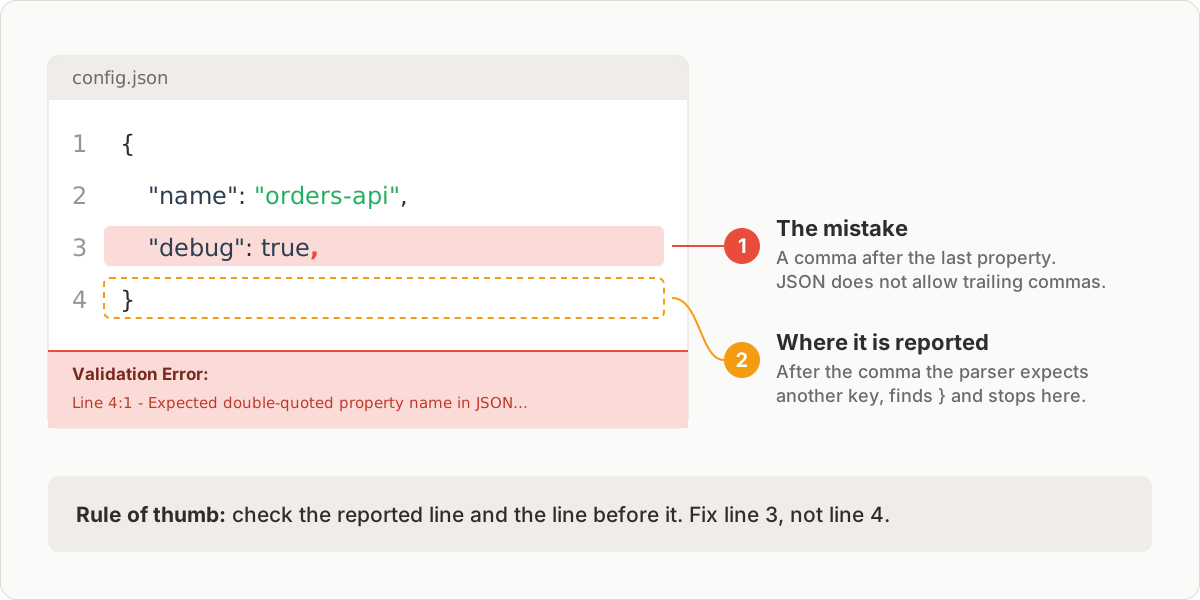
The message rarely names the real problem. No parser says "you added a comment". A // comment produces "Expected double-quoted property name" because the parser found / where it wanted a key. Curly quotes (“name”) from TextEdit, Word or a chat app give the same error as single quotes.
Invisible characters break files that look fine. The BOM row above is a real case: some Windows editors save "UTF-8 with BOM", which puts three invisible bytes at the start of the file. Node.js prints the BOM inside the quotes, so the message looks like it contains nothing. In Python, open the file with encoding="utf-8-sig". In Node.js, strip it before parsing with text.replace(/^\uFEFF/, ''). The better fix is to save the file again as plain UTF-8. In JSON Workbench, the Upload and Paste buttons trim the text first, which also removes a leading BOM, so the file loads either way.
Try it in JSON Workbench
Copy this file into the JSON editor. It has three mistakes:
{
  'name': 'orders-api',
  "server": { "port": 3000 }
  "debug": true,
}
The error bar shows one problem at a time, starting from the top. In Chrome you will see Line 2:3 for the single quotes, then Line 4:3 for the missing comma after } on line 3, then Line 5:1 for the trailing comma on line 4. Each time, the mistake is at the reported spot or on the line before it. When the bar clears, click Format, then Download.
If you edit JSON to reshape API data for a spreadsheet, JSON to CSV turns an array of objects into rows you can open in Excel.
FAQ
How do I edit a .json file on Windows or Mac without installing anything?
Any plain-text editor works. On Windows, use Notepad and save with the encoding set to UTF-8. On a Mac, TextEdit needs two changes first, Format > Make Plain Text and Edit > Substitutions > Smart Quotes off, because curly quotes are not valid JSON. You can also paste the file into the JSON editor in your browser, which checks every edit.
What is the best way to edit JSON files?
For a one-off change, edit by hand in an editor that validates as you type. For the same change across many files, or a file too big to scroll through, use a script or jq. A script cannot leave a trailing comma behind.
Can I add comments to a JSON file?
No. JSON has no comment syntax, and a comment produces an error such as "Expected double-quoted property name". If you need a note, add a normal key like "_comment". Some tools read JSONC or JSON5, which allow comments, but a standard JSON parser will reject those files.
Why is the Format button greyed out in JSON Workbench?
The editor only formats valid JSON. While the red Validation Error bar is visible, Format, Minify, Escape, Unescape and Anonymize are disabled. Fix the error the bar points to and the buttons come back.
Is my file uploaded to a server when I edit JSON online?
In JSON Workbench, no. Upload reads the file with your browser's File API and the text is parsed in the page itself. Other sites work differently. Open your browser's Network tab while you paste to check what any site sends.
Try it yourself
Open the JSON editor
Free, no sign-up. Your file is read and parsed in your browser.
Open the JSON editor