Folder compare · 7 min read
Compare Two Folders on Windows, Mac and Linux: Built-in Ways
Compare two folders with what is already on your computer, robocopy and PowerShell on Windows, diff on Mac and Linux, and know which ones check content.
Last updated
On this page
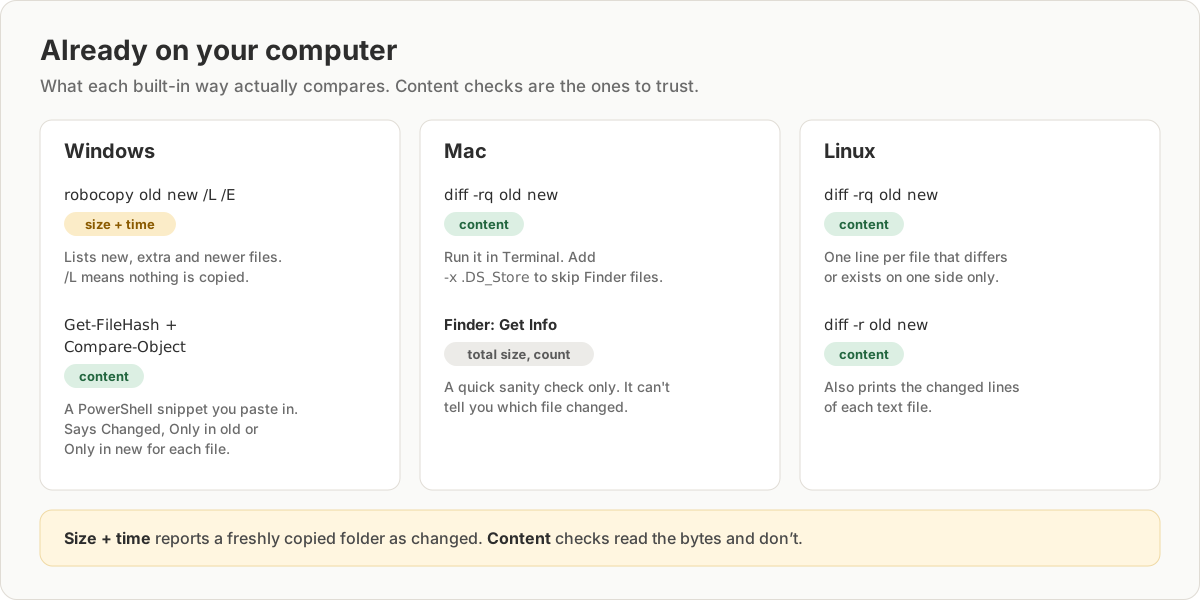
Every computer can already compare two folders. On Windows, paste a short PowerShell snippet that compares the content of every file, or run robocopy old new /L /E for a quick list based on size and date. On a Mac or Linux, open a terminal and run diff -rq old new. It prints one line for each file that differs or exists in only one folder, and nothing if the folders match. The important difference is what each one checks: some read the file contents, and some only compare size and date, which reports a freshly copied folder as changed. Below is one example run with each, and which one to use when.
Our example
We kept a backup copy of a folder of tax documents, then kept working in the original. Since the backup, four things changed in Taxes-2025:
budget.csvwas edited: the power bill went from 85 to 92.Receipts/desk.pdfwas deleted, andReceipts/chair.pdfwas added.- A hidden settings file,
.settings, was changed.
The other files, notes.txt, return.txt and Receipts/laptop.pdf, are unchanged. We ran the Linux commands on Ubuntu 26.04 and the PowerShell snippet in PowerShell 7.4. We couldn't run robocopy or the Mac Terminal ourselves, so those sections are based on Microsoft's and Apple's documentation, and we don't show their output.
Windows: PowerShell compares content
Windows has no "compare folders" button, but PowerShell, which comes with Windows 10 and 11, can do it in a few lines. Open the Start menu, type PowerShell and open it. Change the two paths on the first lines, then paste the whole block and press Enter:
$Old = 'C:\Users\you\Documents\Taxes-2025-backup'
$New = 'C:\Users\you\Documents\Taxes-2025'

# One row per file: its path inside the folder and a SHA-256 of its content.
function Get-FolderSnapshot([string]$Root) {
    $Root = (Resolve-Path $Root).Path
    Get-ChildItem -Path $Root -Recurse -File -Force | ForEach-Object {
        [pscustomobject]@{
            Path = $_.FullName.Substring($Root.Length + 1)
            Hash = (Get-FileHash -Path $_.FullName -Algorithm SHA256).Hash
        }
    }
}

Compare-Object (Get-FolderSnapshot $Old) (Get-FolderSnapshot $New) -Property Path, Hash |
    Group-Object Path | Sort-Object Name | ForEach-Object {
        if ($_.Count -eq 2) { $status = 'Changed' }
        elseif ($_.Group[0].SideIndicator -eq '<=') { $status = 'Only in old' }
        else { $status = 'Only in new' }
        [pscustomobject]@{ Status = $status; Path = $_.Name }
    }
On our two folders, it printed:
Status      Path
------      ----
Changed     .settings
Changed     budget.csv
Only in new Receipts/chair.pdf
Only in old Receipts/desk.pdf
On Windows, the paths use backslashes, such as Receipts\chair.pdf. If nothing is printed, every file is the same in both folders. Get-FileHash reads each file and computes a fingerprint of its content, so a copy with new dates shows no differences: comparing our folder with a fresh copy printed nothing. -Force makes it include hidden files. Without it, .settings was left out.
Paste the snippet instead of saving it as a .ps1 file. Windows blocks running script files by default, but it allows commands typed or pasted into the window.
Windows: robocopy lists differences by size and date
robocopy is the file copy tool built into Windows. With /L, it only lists what it would copy and changes nothing:
robocopy "C:\Users\you\Documents\Taxes-2025-backup" "C:\Users\you\Documents\Taxes-2025" /L /E /NJH /NJS /NP /NDL/E includes subfolders. /NJH and /NJS hide the header and summary, /NP hides the progress percentage and /NDL hides the folder names. According to Microsoft's documentation, robocopy labels a file that exists only in the first folder as New File, a file only in the second folder as *EXTRA File, and a file in both with a different date or size as Newer, Older or Changed.
Two things to know before you trust the list:
- It compares size and date, not content. If the second folder is a fresh copy, every file has a new date and robocopy lists them all. Use the PowerShell snippet to check content.
- Never drop
/Lby accident. Without it, the same command copies files. People often use/MIRhere, but/MIRwithout/Lalso deletes every file in the second folder that isn't in the first.
If one folder is on a USB stick or SD card formatted as FAT32 or exFAT, add /FFT. Those drives store times in 2-second steps, and without /FFT the rounding makes unchanged files look newer or older.
For two single files, fc /b old.pdf new.pdf in Command Prompt compares them byte by byte. It works on files, not whole folders.
Mac: diff in Terminal
macOS comes with diff. Open Terminal from Applications, then Utilities, and type diff -rq with a space at the end. Drag the first folder into the window, then the second, which pastes their paths, and press Enter:
diff -rq ~/Documents/Taxes-2025-backup ~/Documents/Taxes-2025-r goes into subfolders and -q only names the files instead of printing every changed line. The output has the same kind of lines as on Linux, shown below. Finder creates hidden .DS_Store files in folders you open, and they often differ between two copies. Add -x .DS_Store to skip them:
diff -rq -x .DS_Store ~/Documents/Taxes-2025-backup ~/Documents/Taxes-2025In Finder, Get Info (Command-I) on each folder shows its total size and number of items. If they differ, the folders differ, but it can't tell you which file changed, and two folders can have the same size and count with different content.
Linux: diff -rq and diff -r
diff -rq Taxes-2025-backup Taxes-2025Files Taxes-2025-backup/budget.csv and Taxes-2025/budget.csv differ
Only in Taxes-2025/Receipts: chair.pdf
Only in Taxes-2025-backup/Receipts: desk.pdf
Files Taxes-2025-backup/.settings and Taxes-2025/.settings differThat is all four changes, including the hidden file. diff compares content, so the three unchanged files aren't listed, and a fresh copy of the folder printed nothing. Leave out -q to also see what changed inside each text file:
diff -r Taxes-2025-backup/budget.csv Taxes-2025/budget.csv
2c2
< Power,85
---
> Power,92
2c2 means line 2 changed. Lines starting with < come from the first folder and > from the second. To skip files or folders, add --exclude, for example --exclude=.settings.
Which one to use
| Method | Built into | Compares | Subfolders | Hidden files |
|---|---|---|---|---|
| PowerShell snippet | Windows | Content | Yes | Yes, with -Force |
robocopy /L /E |
Windows | Size and date | Yes, with /E |
Yes |
fc /b |
Windows | Content | No, files only | Not applicable |
diff -rq |
Mac, Linux | Content | Yes | Yes |
| Get Info / Properties | Mac, Windows | Total size and count | Yes | Not reliably |
If you want to know whether anything changed, use one that compares content. Use robocopy when you're about to sync the folders anyway and want to preview what would be copied.
When this fails
| Symptom | Cause | Fix |
|---|---|---|
| robocopy lists every file | The folder is a copy, so every date is new | Use the PowerShell snippet, which compares content |
| Files on a USB stick show as Newer or Older | FAT32 and exFAT store times in 2-second steps | Add /FFT to robocopy |
.DS_Store appears in the Mac output |
Finder creates these files in every folder you open | Add -x .DS_Store |
| A hidden file is missing from the PowerShell list | Get-ChildItem skips hidden files |
Keep -Force in the snippet |
| A file is "Changed" but looks the same | Its line endings or invisible characters changed | Open both versions in File Compare to see each line |
Try it in JSON Workbench
If you'd rather not use a terminal, open Folder Compare in your browser, choose the two folders and click Differences. It lists added, removed and modified files without uploading them, and you can click a file to see its changed lines side by side. It decides which files are modified by size and date, like robocopy, so check a fresh copy with one of the content checks above. For two versions of a spreadsheet, Excel Compare shows the changed cells. To find renamed files too, see finding which files changed between two copies.
FAQ
How do I compare two folders in Windows without software?
Paste the PowerShell snippet from this guide into a PowerShell window. It reads every file, including hidden ones, and lists each one as Changed, Only in old or Only in new. robocopy old new /L /E also works without installing anything, but it compares size and time, not content.
How do I compare two folders on a Mac?
Open Terminal and run diff -rq followed by the two folders. You can drag each folder into the Terminal window to paste its path. Add -x .DS_Store to ignore the hidden files Finder creates. If nothing is printed, the folders have the same files with the same content.
How do I compare the contents of two folders in Linux?
Run diff -rq folder1 folder2 to list the files that differ or exist on only one side, and diff -r folder1 folder2 to also see the changed lines of each text file. Both compare content, so files that were only copied are not reported.
Is robocopy /L safe to run?
Yes. With /L, robocopy only lists what it would do and doesn't copy, delete or change any file. Without /L, the same command copies files, and with /MIR it also deletes files in the second folder that aren't in the first, so always check that /L is there.
Can I compare two folders online instead?
Yes. Folder Compare runs in your browser without uploading the files, and shows the changed lines of each file side by side. Like robocopy, it decides which files are modified by size and time.
Try it yourself
Open Folder Compare
Free, no sign-up. Your file is read and parsed in your browser.
Open Folder Compare