Folder compare · 7 min read
Check That a Backup Matches the Original Folder
Make sure a backup is complete and correct before you delete the original. Three checks, what each one misses, and what USB sticks and zip files drop.
Last updated
On this page
To check that a backup matches the original folder, compare the content of every file, not just names, sizes or dates. On Mac or Linux, diff -rq original backup does that and prints nothing when the folders match. On Windows, a short PowerShell snippet does the same. Before that, a 10-second check catches the most common problem: count the files in both folders. A missing file changes the count. A damaged file doesn't, and neither does a file whose size and date look right but whose content is wrong. Below are three levels of checking, each tested on a real backup, plus what zip files and USB sticks silently leave out.
Our test backup
We backed up a Photos folder with seven files in it, plus a few things that often go wrong:
- three photos, a
notes.txtand a hidden.albumfile - an empty folder,
2026/Empty-album cover.jpg, a symbolic link (a shortcut) to one of the photosPrivate/locked.txt, a file the user didn't have permission to readPlan: day 1?.txt, a name with a colon and a question mark
We copied it with cp -r Photos Backup on Ubuntu 26.04. cp printed cannot open 'Photos/Private/locked.txt' for reading: Permission denied and carried on. In a file manager, a message like that is easy to miss.
Level 1: count the files
On Linux, count the files and add up their sizes in each folder:
find Photos -type f | wc -l
find Photos -type f -printf '%s\n' | awk '{s+=$1} END {print s}'
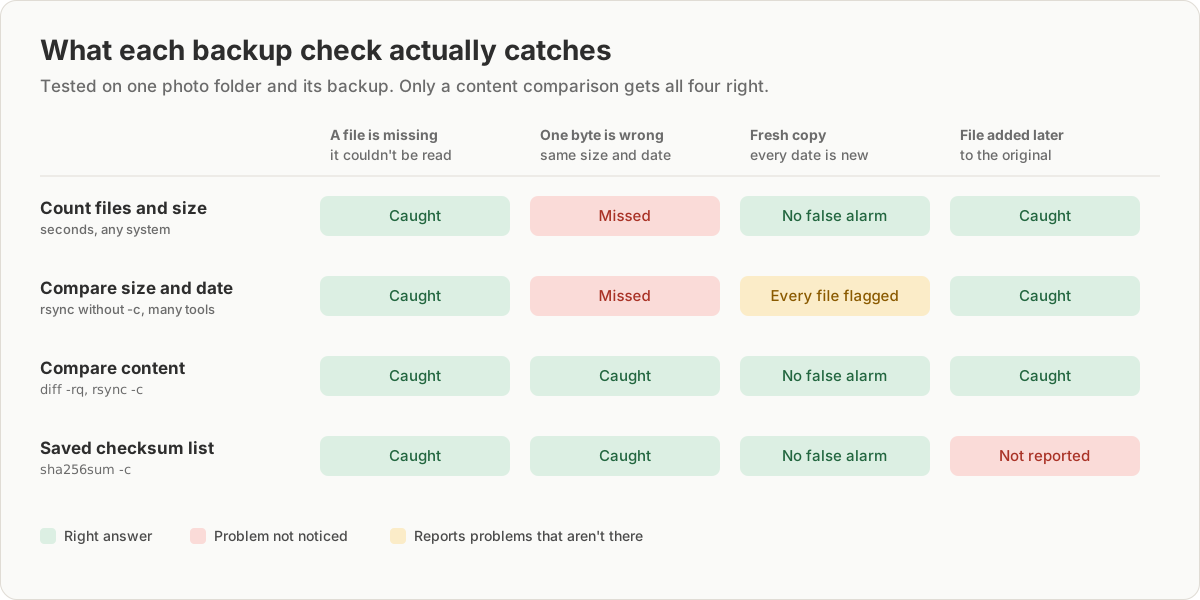
Our original had 7 files and 606,052 bytes. The backup had 6 files and 606,045 bytes, so something was missing. On a Mac, the first command works as is, and Finder's Get Info shows the size in bytes. On Windows, run this in PowerShell, which prints the number of files and their total size:
Get-ChildItem 'C:\Users\you\Pictures\Photos' -Recurse -File -Force | Measure-Object Length -SumThis check takes seconds, even for thousands of files. It doesn't tell you which file is missing, and it can't see damage that doesn't change the size.
Level 2: compare every file
diff -rq Photos BackupOnly in Photos/Private: locked.txtThat names the missing file. diff reads every file in both folders, so it is slower, but it is the check to run before you delete the original. It also follows the symbolic link and compares the photo it points to. On Windows, use the PowerShell snippet in built-in ways to compare two folders, which compares a fingerprint of each file's content.
Why not compare size and date? Many tools do, including rsync without -c and our own Folder Compare. We changed one byte in the middle of a backed-up photo and set its date back, which is what silent damage on a failing drive looks like. The size and date still matched the original, so a size-and-date comparison reported no difference. diff -rq, rsync -rcn and a checksum list all reported the damaged photo. The opposite also happens: a fresh copy with new dates looks completely different to a size-and-date check, even when every byte is right.
Level 3: keep a checksum list with the backup
A checksum is a fingerprint of a file's content. Save one for every file right after the backup, and you can check the backup again months later, even when the original is gone:
cd Backup
find . -type f -exec sha256sum {} + > ../Backup.sha256
Later, run this inside the backup folder:
sha256sum -c --quiet ../Backup.sha256It printed nothing on our intact backup. After we damaged the photo, it printed ./2026/Trip/IMG_002.jpg: FAILED and WARNING: 1 computed checksum did NOT match. A file that has disappeared shows up as FAILED open or read. It won't report files added to the folder after the list was made, because it only checks files on the list. To compare the list with a folder in both directions, use the script in finding which files changed.
Zip and tar backups
unzip -t only checks the zip against itself. On our good zip it printed No errors detected in compressed data of Photos.zip. With four bytes overwritten, it reported bad CRC for the damaged photo. But when zip couldn't read locked.txt, it printed only zip warning: Permission denied, created the zip without the file, and unzip -t still said No errors detected. Check the number of files with unzip -l, or unzip to a temporary folder and compare it with diff -rq.
tar -df compares an archive with the folder. Run it from the folder that contains Photos:
tar -df Photos.tarOn an unchanged folder, it printed nothing. After we edited notes.txt and deleted .album in the original, it printed Contents differ and Mod time differs for the note and Cannot stat: No such file or directory for the missing file. Like a checksum list, it says nothing about files added to the folder later. Our test file added after the backup didn't appear.
What a USB stick drops
Most USB sticks and SD cards are formatted as FAT32 or exFAT. We copied our folder onto real FAT32 and exFAT disk images with cp -r --preserve=timestamps, which keeps the dates like a file manager does. Both refused two items:
Plan: day 1?.txt, withInvalid argument, because:and?aren't allowed in file names. Neither are*,",<,>,|and\.cover.jpg, withOperation not permitted, because these formats can't store symbolic links.
Afterwards, diff -rq listed exactly those two. FAT32 also can't store a single file of 4 GB or more, so large videos and disk images fail. And both formats store dates less precisely: FAT32 kept 17:52:40 for a file saved at 17:52:40.90. A size-and-date comparison then flags every file as modified, while diff -rq doesn't.
A checklist for every backup
- Watch the copy for errors, and don't close the window until it finishes.
- Count the files and total size in both folders. If they differ, find out why.
- Before deleting the original, run
diff -rq original backup, or the PowerShell snippet on Windows. - Save a checksum list inside or next to the backup.
- Every few months, run
sha256sum -con the backup to catch a failing drive early.
When this fails
| Symptom | Cause | Fix |
|---|---|---|
| The backup has fewer files | Some files couldn't be read or copied | Run diff -rq to see which; fix permissions or names and copy again |
| Every file shows as modified | The tool compares dates, and the copy or the drive changed them | Compare content with diff -rq or rsync -c |
Files with : or ? in their names are missing |
FAT32 and exFAT don't allow them | Rename the files, or use a drive formatted as NTFS, APFS or ext4 |
unzip -t passes, but a file is missing |
The zip was made without it | Compare the file count with unzip -l |
| A link or shortcut is missing | The drive can't store links, or the tool skips them | Copy what the link points to, or note it separately |
Try it in JSON Workbench
To look through the two folders side by side without a terminal, open Folder Compare, choose the original and the backup, and click Differences. It shows missing and extra files right away and lets you open any file to see what changed. It compares size and date, so use diff -rq for the final check before deleting anything. How to compare two folders online explains how it works.
FAQ
How do I check that two folders match?
Compare the content of every file. On Mac or Linux, diff -rq original backup prints nothing when the folders match and one line for each file that differs or is missing. On Windows, use the PowerShell snippet from our guide to built-in ways to compare folders.
Is comparing file count and size enough to verify a backup?
It catches missing files, which is the most common problem, and takes seconds. It can't catch a file whose content is damaged but whose size is unchanged. In our test, a photo with one wrong byte had the same count, size and date, and only a content check found it.
Does unzip -t check that a zip backup is complete?
No. unzip -t checks that every file in the zip can be read back without errors. It doesn't know about files that never got into the zip. When zip couldn't read one of our files, it only printed a warning, and unzip -t still said "No errors detected".
Why are some files missing after copying to a USB stick?
Most USB sticks use FAT32 or exFAT, which don't allow characters like : and ? in file names and can't store symbolic links. FAT32 also can't store files of 4 GB or more. In our test, both formats refused a file named "Plan: day 1?.txt" and a link.
How do I check a backup again months later?
Save a checksum list next to the backup right after you make it, with find . -type f -exec sha256sum {} + > ../backup.sha256 on Linux. Later, run sha256sum -c --quiet ../backup.sha256 inside the backup. It prints FAILED for every file that changed or is missing.
Try it yourself
Open Folder Compare
Free, no sign-up. Your file is read and parsed in your browser.
Open Folder Compare